
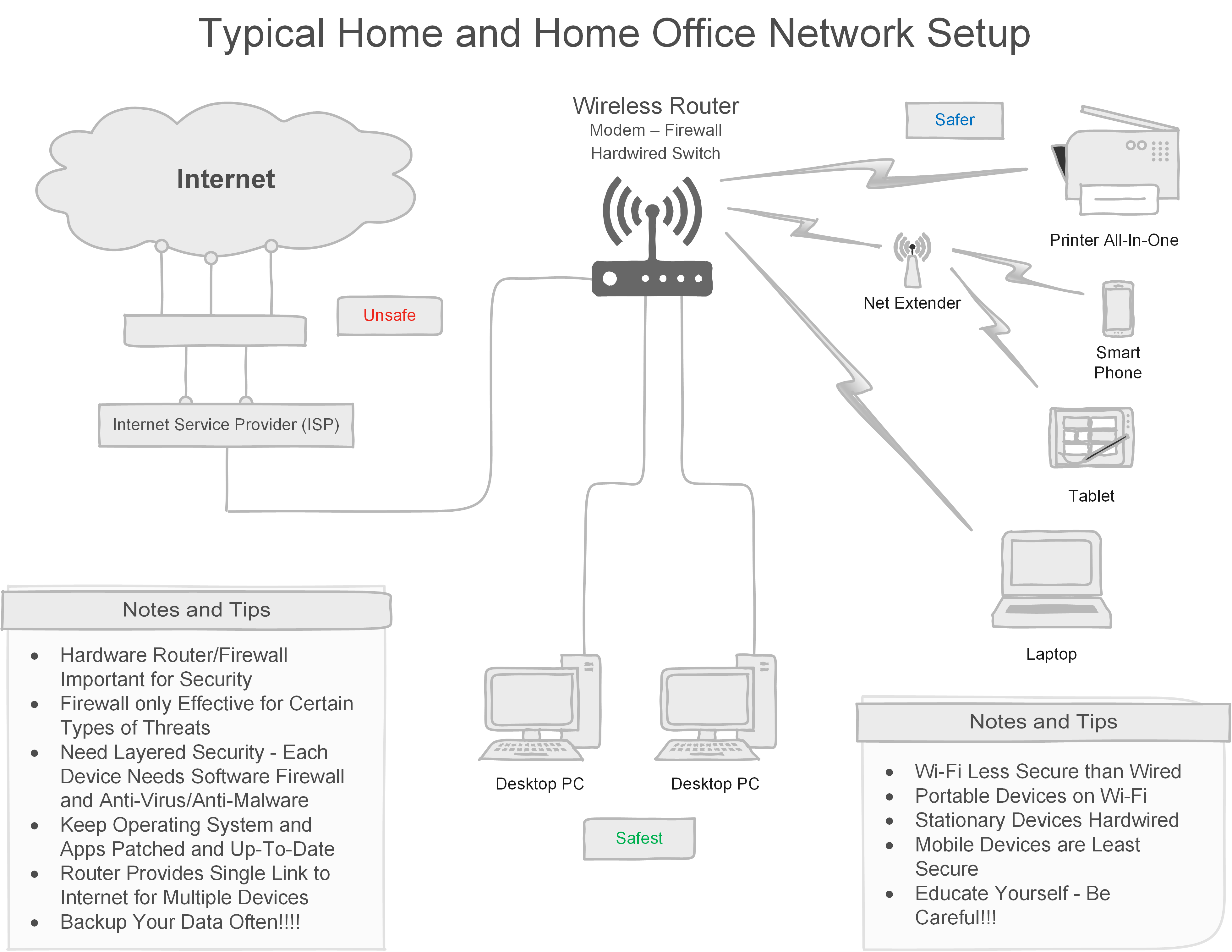
To secure a wireless network for home offices, change the default router password and enable WPA3 encryption. Regularly update the router’s firmware to protect against vulnerabilities.
How to Secure a Wireless Network for Home Offices:In today’s digital age, securing your wireless network is essential, especially for home offices. With sensitive data often transmitted over Wi-Fi, a robust security strategy is vital. Cyber threats, including unauthorized access and data breaches, can compromise your work. Simple steps can significantly enhance your network’s security.
This guide will help you implement effective measures to protect your home office network. From updating passwords to using advanced encryption methods, securing your Wi-Fi connection will safeguard both your personal and professional information. Stay one step ahead of cybercriminals and create a secure working environment at home.

Credit: www.youtube.com
Securing Your Wireless Network: Why It Matters
Protecting your wireless network is crucial for home offices. A secure network prevents unauthorized access. It safeguards sensitive data from cyber threats. Understanding the importance of wireless security helps you stay safe.
The Rise Of Home Offices
Home offices are becoming increasingly common. More people work from home now than ever. This shift creates a need for secure networks. A strong wireless connection supports productivity.
- Flexibility in work hours
- Reduced commuting time
- Better work-life balance
Risks Of An Unsecured Network
An unsecured network exposes your data to threats. Cybercriminals can easily access personal information. They may steal passwords, financial data, or sensitive documents.
| Risk | Description |
|---|---|
| Data Theft | Unauthorized access to sensitive files |
| Identity Fraud | Using stolen information for illegal activities |
| Malware Attacks | Infection of devices with harmful software |
Unsecured networks lead to financial loss and stress. Protecting your connection is essential for peace of mind.
Initial Setup: Strong Foundations
Securing a wireless network starts with the right setup. A solid foundation protects your home office from potential threats. Follow these steps to establish a secure wireless environment.
Choosing The Right Equipment
Selecting the right equipment is crucial. Here are essential components to consider:
- Router: Choose a router with strong security features.
- Firewall: Use a hardware firewall for an extra layer of protection.
- Antennas: Consider routers with external antennas for better coverage.
Check the specifications carefully. Look for devices that support the latest standards:
| Standard | Max Speed | Range |
|---|---|---|
| 802.11n | 600 Mbps | 150 ft |
| 802.11ac | 1.3 Gbps | 300 ft |
| 802.11ax | 9.6 Gbps | 400 ft |
Understanding Encryption Protocols
Encryption protocols protect your network from unauthorized access. Here are key protocols to use:
- WPA2: Offers strong security for most home networks.
- WPA3: The latest standard with enhanced protection.
Always choose WPA2 or WPA3 for your wireless network. Avoid WEP, as it is outdated and insecure.
Follow these steps to set up encryption:
- Access your router’s settings through a web browser.
- Locate the security settings section.
- Select WPA2 or WPA3 as your encryption method.
- Create a strong password using letters, numbers, and symbols.
Regularly update your router firmware. This ensures you have the latest security features.
Creating A Fortified Wifi Password
Securing your home office starts with a strong WiFi password. A weak password leaves your network vulnerable. Hackers can easily access your personal data. Follow these tips to create a robust password.
Characteristics Of A Strong Password
A strong WiFi password has specific traits. Aim for the following:
- Length: At least 12 characters long.
- Variety: Use a mix of letters, numbers, and symbols.
- Avoid Common Words: Don’t use easily guessable words.
- No Personal Info: Avoid birthdays and names.
- Randomness: Combine characters in a random order.
For example, instead of “password123,” use “7$rDg!9bZq@1”. This password is much harder to crack.
Password Management Tools
Keeping track of strong passwords can be tricky. Use password management tools. These tools help store and generate secure passwords.
| Tool Name | Features |
|---|---|
| LastPass | Free and premium versions, easy sharing. |
| 1Password | User-friendly, strong encryption. |
| Dashlane | Dark web monitoring, secure password sharing. |
Choose a tool that suits your needs. Use it to manage your passwords securely.
Ssid Smarts: To Hide Or Not To Hide?
Securing your wireless network is crucial for a safe home office. One question arises: Should you hide your SSID? Let’s explore the pros and cons of hiding your SSID.
Pros And Cons Of Hiding Ssid
| Pros | Cons |
|---|---|
| Increased Privacy: Hiding the SSID makes it harder for outsiders to see your network. | Not Foolproof: Skilled hackers can still find hidden networks. |
| Less Interference: Fewer nearby networks can lead to better performance. | Inconvenience: Devices may struggle to connect without the SSID visible. |
| Control: You can manage who sees your network. | False Sense of Security: Hiding may lead to complacency in security practices. |
Setting Up A Hidden Ssid
Want to hide your SSID? Follow these steps:
- Access your router settings. Open a web browser.
- Type your router’s IP address. Common ones are
192.168.1.1or192.168.0.1. - Log in with your admin credentials.
- Find the wireless settings section.
- Look for an option that says “Hide SSID” or “Disable SSID Broadcast”.
- Check the box to hide your SSID.
- Save your changes and restart the router.
Remember to update all your devices with the hidden SSID. This ensures they can connect properly.
Implementing Network Encryption
Securing your wireless network is essential for home offices. One of the best ways to do this is by implementing network encryption. Encryption protects your data from unauthorized access. It ensures that only you and authorized users can access your network. Using strong encryption methods is key to keeping your information safe.
Wpa3 Vs. Older Protocols
WPA3 is the latest wireless security protocol. It offers better protection than older protocols like WPA2 and WEP. Here’s a quick comparison:
| Protocol | Security Level | Key Features |
|---|---|---|
| WEP | Weak | Oldest protocol; easily hacked |
| WPA | Moderate | Improved security; still vulnerable |
| WPA2 | Strong | Better encryption; widely used |
| WPA3 | Very Strong | Enhanced security; resistant to attacks |
Choose WPA3 for maximum security. It protects against brute-force attacks. It also makes password guessing harder. Older protocols are outdated and insecure.
How To Enable Wpa3
Enabling WPA3 is simple. Follow these steps:
- Access your router settings. This is usually done through a web browser.
- Log in with your admin credentials.
- Navigate to the Wireless Security section.
- Select WPA3 from the security options.
- Save the changes and restart your router.
Check if your devices support WPA3. Most newer devices do. If not, consider upgrading. Protect your home office with strong network encryption today.
Regular Firmware Updates
Keeping your wireless network secure is vital. Regular firmware updates play a crucial role in this. Firmware is the software that runs your router. Updates fix bugs and patch security holes. Staying current protects your home office from threats.
Importance Of Firmware Maintenance
Firmware maintenance is essential for your network’s safety. Here are some key reasons:
- Security Enhancements: Updates often contain security patches.
- Performance Boosts: New firmware can improve speed and efficiency.
- Bug Fixes: Updates address known issues and glitches.
- Compatibility: Ensure your devices work well with updated software.
Neglecting firmware updates can leave your network vulnerable. Cybercriminals often exploit outdated systems. Regular updates help defend against these threats.
Setting Up Automatic Updates
Automatic updates simplify firmware maintenance. You don’t have to remember to check for updates. Follow these steps to set up automatic updates:
- Access your router’s admin panel.
- Look for the “Firmware” section in settings.
- Select the option for automatic updates.
- Save your changes and exit the panel.
Most routers support automatic updates. Check your router’s manual for specific instructions. Enable this feature to keep your network secure effortlessly.
Filtering For Added Security
Enhancing your wireless network security is essential. Filtering allows you to control who accesses your network. This adds an extra layer of protection against unauthorized users.
Mac Address Filtering
MAC address filtering is a method that allows only specific devices to connect. Each device has a unique MAC address. Here’s how to set it up:
- Access your router settings.
- Find the MAC filtering section.
- Add the MAC addresses of your devices.
- Save the changes.
Now, only the listed devices can access your network. Others will be blocked.
Setting Up Content Filters
Content filters help manage what users can access online. They protect against harmful websites. Here’s how to set them up:
- Go to your router settings.
- Locate the content filtering section.
- Choose categories to block.
- Save the settings.
Consider these common categories:
| Category | Description |
|---|---|
| Adult Content | Blocks adult websites and material. |
| Social Media | Limits access to social media platforms. |
| Gaming | Restricts access to online gaming sites. |
These filters keep your network safe. They ensure a secure online experience.
Separate Networks For Work And Play
Creating separate networks for work and play boosts security and performance. It keeps personal devices and work devices apart. This setup minimizes risks and improves productivity. Let’s explore the benefits of this approach.
Benefits Of Network Segmentation
- Enhanced Security: Protect sensitive work data from personal devices.
- Improved Performance: Reduce congestion on your primary network.
- Better Control: Manage bandwidth for work and play separately.
- Guest Access: Allow visitors to use the internet without accessing work files.
| Benefit | Description |
|---|---|
| Enhanced Security | Isolate work devices from potential threats on personal devices. |
| Improved Performance | Dedicated bandwidth for work tasks leads to faster speeds. |
| Better Control | Assign priorities to work traffic over personal traffic. |
| Guest Access | Visitors can access the internet without compromising security. |
How To Create A Guest Network
- Log into your router’s admin panel.
- Find the Guest Network settings.
- Enable the guest network feature.
- Set a unique SSID for easy identification.
- Choose a strong password to limit access.
- Adjust security settings to protect your main network.
- Save changes and reboot the router.
Creating a guest network enhances security for your home office. It keeps your work devices safe from potential threats. Follow these steps to set up your guest network today.
Regular Network Monitoring
Regular network monitoring is essential for a secure home office. It helps detect threats early. Keeping an eye on your network prevents unauthorized access. This proactive approach protects sensitive information.
Tools For Monitoring Network Activity
Using the right tools simplifies network monitoring. Here are some popular options:
- Wireshark: A free tool for analyzing network traffic.
- Nagios: Monitors system health and alerts on issues.
- GlassWire: Visualizes network activity and alerts on anomalies.
- Fing: Scans networks to identify connected devices.
These tools provide valuable insights. They help identify unusual patterns in network activity.
Identifying Suspicious Behavior
Detecting suspicious behavior is crucial. Here are some signs to watch for:
- Unrecognized devices on your network.
- Unexpected spikes in data usage.
- Frequent disconnections or slow performance.
- Unusual login attempts at odd hours.
Regularly review logs from your monitoring tools. Look for patterns and anomalies. Early detection can prevent data breaches.

Credit: medium.com
Best Practices For Connected Devices
Securing connected devices is crucial for a safe home office. These devices can be gateways for cyber threats. Implementing best practices helps protect your network and personal data.
Securing Iot Devices
Internet of Things (IoT) devices are common in many homes. These include smart speakers, cameras, and thermostats. Follow these steps to secure them:
- Change Default Passwords: Use strong, unique passwords.
- Update Firmware: Regularly check for and install updates.
- Disable Unused Features: Turn off features you don’t use.
- Network Segmentation: Place IoT devices on a separate network.
These steps reduce risks significantly. Each device needs careful monitoring.
Personal Device Policies
Establishing clear policies for personal devices is vital. This ensures security and protects sensitive data. Consider these guidelines:
- Use Strong Passwords: Create unique passwords for each device.
- Enable Two-Factor Authentication: Adds an extra layer of security.
- Regular Backups: Keep data safe with regular backups.
- Educate Users: Teach family members about security threats.
Following these policies enhances overall network security. A safe home office starts with informed users.
Educating Family Members On Security
Securing a wireless network is crucial for home offices. Educating family members on security helps everyone stay safe online. Knowledge empowers them to recognize threats and follow best practices.
Setting Rules For Home Office
Establish clear rules for everyone using the network. Rules create a safer online environment. Consider these guidelines:
- No sharing passwords with friends or visitors.
- Limit device connections to trusted devices only.
- Keep software updated on all devices.
- Use strong passwords for all accounts.
Make a list of approved devices. Share this list with family members. This prevents unauthorized access.
Teaching Safe Internet Habits
Instilling safe internet habits is essential. Teach family members to:
- Recognize phishing emails. Look for suspicious links.
- Avoid clicking on unknown links or attachments.
- Use secure websites. Look for “HTTPS” in the URL.
- Report suspicious activity immediately.
Set up regular family discussions. Talk about online safety and new threats. Share experiences to learn from each other.
| Safe Habit | Why It Matters |
|---|---|
| Strong Passwords | Protects accounts from unauthorized access. |
| Regular Updates | Fixes security vulnerabilities. |
| Privacy Settings | Limits information shared online. |
| Safe Browsing | Prevents malware infections. |
Teach children to ask questions. Encourage them to seek help if unsure. Building a culture of security keeps everyone safe.
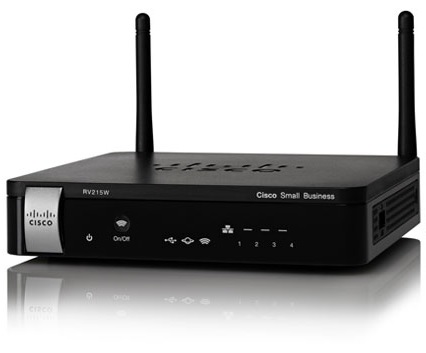
Credit: www.secureitstore.com
Backup Plans: Preparing For The Worst
Securing your wireless network is crucial for a home office. Backup plans protect valuable data. Prepare for unexpected issues. A solid strategy ensures you recover quickly.
Data Backup Solutions
Choose a reliable data backup solution to safeguard your files. Here are some popular options:
- External Hard Drives: Store data offline for easy access.
- Cloud Storage: Use services like Google Drive or Dropbox.
- Network Attached Storage (NAS): Centralize your backups at home.
Consider these factors for your backup solution:
| Factor | Importance |
|---|---|
| Storage Capacity | Enough space for your data. |
| Security Features | Encrypt sensitive information. |
| Accessibility | Access data easily from anywhere. |
Disaster Recovery Strategies
Plan for disasters to minimize downtime. Effective disaster recovery strategies include:
- Create a Recovery Plan: Outline steps to recover data.
- Regular Testing: Test your backups often to ensure they work.
- Prioritize Critical Data: Identify which files are essential.
Implement these tips for a robust recovery plan:
- Document procedures clearly.
- Train staff on recovery processes.
- Establish a communication plan for emergencies.
Professional Help: When To Call In The Experts
Securing a wireless network for your home office is vital. Sometimes, DIY solutions may not suffice. Knowing when to seek professional help can save time and stress. Let’s explore the signs that indicate it’s time to call in experts.
Signs You Need Professional Assistance
- Persistent Connection Issues: Frequent drops or slow speeds can signal a problem.
- Unfamiliar Devices: Unknown devices connected to your network may indicate a security breach.
- Inconsistent Security Alerts: Alerts about security threats that you cannot resolve may require expert help.
- Setup Challenges: Difficulty in configuring your router or firewall can indicate a need for assistance.
- Multiple Users: A growing number of users can complicate network management.
Finding Reputable It Support
Choosing the right IT support is crucial. Follow these steps to find reputable professionals.
- Research: Look for local IT firms with strong reviews.
- Check Credentials: Verify certifications and experience in network security.
- Ask for Referrals: Get recommendations from friends or family.
- Request Quotes: Compare prices and services offered by different providers.
- Schedule Consultations: Meet with potential IT support to discuss your needs.
Investing in professional help can enhance your network’s security. This ensures a safe and efficient home office.
Frequently Asked Questions
How Can I Secure My Home Wireless Network?
To secure your home wireless network, start by changing the default username and password of your router. Use WPA3 encryption for better security. Regularly update your router’s firmware. Consider disabling remote management and using a guest network for visitors to minimize risk.
What Are The Best Practices For Wi-fi Security?
Best practices for Wi-Fi security include using strong, unique passwords and enabling network encryption. Regularly update your devices and router firmware. Disable WPS and hide your SSID to make your network less visible. Regularly monitor connected devices to detect any unauthorized access.
Should I Use A Guest Network?
Yes, using a guest network is highly recommended. It allows visitors to access the internet without compromising your primary network. This separation enhances security by limiting access to your personal devices and sensitive information. Always ensure the guest network has a strong password and proper encryption.
How Do I Change My Wi-fi Password?
To change your Wi-Fi password, log into your router’s admin panel using a web browser. Locate the wireless settings section and find the password option. Enter a new, strong password and save the changes. Remember to update all your connected devices with the new password.
Conclusion
Securing your wireless network is essential for a safe home office. Implement strong passwords, enable encryption, and regularly update your router firmware. These steps help protect your sensitive information from cyber threats. Prioritize your network’s security to create a productive and safe working environment.
Stay vigilant and informed to ensure lasting protection.


Leave a Reply