
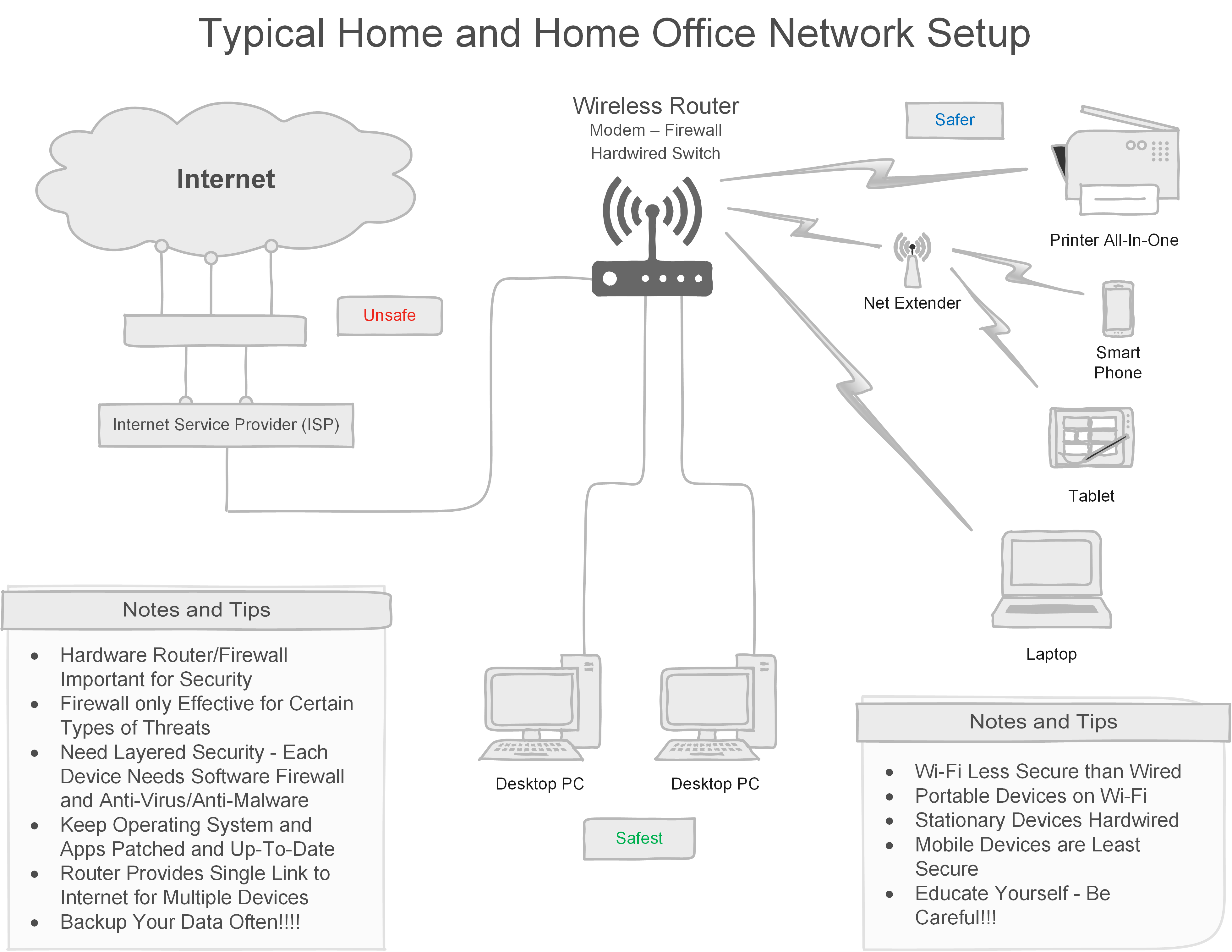
To secure a wireless network for home offices, change the default router password and enable WPA3 encryption. Regularly update the router’s firmware to protect against vulnerabilities.
How to Secure a Wireless Network for Home Offices:In today’s digital age, securing your wireless network is essential, especially for home offices. With sensitive data often transmitted over Wi-Fi, a robust security strategy is vital. Cyber threats, including unauthorized access and data breaches, can compromise your work. Simple steps can significantly enhance your network’s security.
This guide will help you implement effective measures to protect your home office network. From updating passwords to using advanced encryption methods, securing your Wi-Fi connection will safeguard both your personal and professional information. Stay one step ahead of cybercriminals and create a secure working environment at home.

Credit: www.youtube.com
Securing Your Wireless Network: Why It Matters
Protecting your wireless network is crucial for home offices. A secure network prevents unauthorized access. It safeguards sensitive data from cyber threats. Understanding the importance of wireless security helps you stay safe.
The Rise Of Home Offices
Home offices are becoming increasingly common. More people work from home now than ever. This shift creates a need for secure networks. A strong wireless connection supports productivity.
- Flexibility in work hours
- Reduced commuting time
- Better work-life balance
Risks Of An Unsecured Network
An unsecured network exposes your data to threats. Cybercriminals can easily access personal information. They may steal passwords, financial data, or sensitive documents.
| Risk | Description |
|---|---|
| Data Theft | Unauthorized access to sensitive files |
| Identity Fraud | Using stolen information for illegal activities |
| Malware Attacks | Infection of devices with harmful software |
Unsecured networks lead to financial loss and stress. Protecting your connection is essential for peace of mind.
Initial Setup: Strong Foundations
Securing a wireless network starts with the right setup. A solid foundation protects your home office from potential threats. Follow these steps to establish a secure wireless environment.
Choosing The Right Equipment
Selecting the right equipment is crucial. Here are essential components to consider:
- Router: Choose a router with strong security features.
- Firewall: Use a hardware firewall for an extra layer of protection.
- Antennas: Consider routers with external antennas for better coverage.
Check the specifications carefully. Look for devices that support the latest standards:
| Standard | Max Speed | Range |
|---|---|---|
| 802.11n | 600 Mbps | 150 ft |
| 802.11ac | 1.3 Gbps | 300 ft |
| 802.11ax | 9.6 Gbps | 400 ft |
Understanding Encryption Protocols
Encryption protocols protect your network from unauthorized access. Here are key protocols to use:
- WPA2: Offers strong security for most home networks.
- WPA3: The latest standard with enhanced protection.
Always choose WPA2 or WPA3 for your wireless network. Avoid WEP, as it is outdated and insecure.
Follow these steps to set up encryption:
- Access your router’s settings through a web browser.
- Locate the security settings section.
- Select WPA2 or WPA3 as your encryption method.
- Create a strong password using letters, numbers, and symbols.
Regularly update your router firmware. This ensures you have the latest security features.
Creating A Fortified Wifi Password
Securing your home office starts with a strong WiFi password. A weak password leaves your network vulnerable. Hackers can easily access your personal data. Follow these tips to create a robust password.
Characteristics Of A Strong Password
A strong WiFi password has specific traits. Aim for the following:
- Length: At least 12 characters long.
- Variety: Use a mix of letters, numbers, and symbols.
- Avoid Common Words: Don’t use easily guessable words.
- No Personal Info: Avoid birthdays and names.
- Randomness: Combine characters in a random order.
For example, instead of “password123,” use “7$rDg!9bZq@1”. This password is much harder to crack.
Password Management Tools
Keeping track of strong passwords can be tricky. Use password management tools. These tools help store and generate secure passwords.
| Tool Name | Features |
|---|---|
| LastPass | Free and premium versions, easy sharing. |
| 1Password | User-friendly, strong encryption. |
| Dashlane | Dark web monitoring, secure password sharing. |
Choose a tool that suits your needs. Use it to manage your passwords securely.
Ssid Smarts: To Hide Or Not To Hide?
Securing your wireless network is crucial for a safe home office. One question arises: Should you hide your SSID? Let’s explore the pros and cons of hiding your SSID.
Pros And Cons Of Hiding Ssid
| Pros | Cons |
|---|---|
| Increased Privacy: Hiding the SSID makes it harder for outsiders to see your network. | Not Foolproof: Skilled hackers can still find hidden networks. |
| Less Interference: Fewer nearby networks can lead to better performance. | Inconvenience: Devices may struggle to connect without the SSID visible. |
| Control: You can manage who sees your network. | False Sense of Security: Hiding may lead to complacency in security practices. |
Setting Up A Hidden Ssid
Want to hide your SSID? Follow these steps:
- Access your router settings. Open a web browser.
- Type your router’s IP address. Common ones are
192.168.1.1or192.168.0.1. - Log in with your admin credentials.
- Find the wireless settings section.
- Look for an option that says “Hide SSID” or “Disable SSID Broadcast”.
- Check the box to hide your SSID.
- Save your changes and restart the router.
Remember to update all your devices with the hidden SSID. This ensures they can connect properly.
Implementing Network Encryption
Securing your wireless network is essential for home offices. One of the best ways to do this is by implementing network encryption. Encryption protects your data from unauthorized access. It ensures that only you and authorized users can access your network. Using strong encryption methods is key to keeping your information safe.
Wpa3 Vs. Older Protocols
WPA3 is the latest wireless security protocol. It offers better protection than older protocols like WPA2 and WEP. Here’s a quick comparison:
| Protocol | Security Level | Key Features |
|---|---|---|
| WEP | Weak | Oldest protocol; easily hacked |
| WPA | Moderate | Improved security; still vulnerable |
| WPA2 | Strong | Better encryption; widely used |
| WPA3 | Very Strong | Enhanced security; resistant to attacks |
Choose WPA3 for maximum security. It protects against brute-force attacks. It also makes password guessing harder. Older protocols are outdated and insecure.
How To Enable Wpa3
Enabling WPA3 is simple. Follow these steps:
- Access your router settings. This is usually done through a web browser.
- Log in with your admin credentials.
- Navigate to the Wireless Security section.
- Select WPA3 from the security options.
- Save the changes and restart your router.
Check if your devices support WPA3. Most newer devices do. If not, consider upgrading. Protect your home office with strong network encryption today.
Regular Firmware Updates
Keeping your wireless network secure is vital. Regular firmware updates play a crucial role in this. Firmware is the software that runs your router. Updates fix bugs and patch security holes. Staying current protects your home office from threats.