
To secure your Wi-Fi network at home, change the default password and enable WPA3 encryption. Regularly update your router’s firmware for optimal security.
How to Secure Your Wi-Fi Network at Home:In today’s digital age, a secure Wi-Fi network is essential for protecting your personal information. With more devices connecting to the internet than ever, vulnerabilities increase. Cybercriminals often target weak or unsecured networks to gain unauthorized access. By taking simple steps, you can significantly reduce the risk of hacking and identity theft.
This guide will provide practical tips to enhance your Wi-Fi security. From changing default settings to managing connected devices, these strategies will help you create a safer online environment. Prioritizing your network security ensures that your data remains private and your internet experience stays uninterrupted.
The Importance Of Wi-fi Security
Securing your Wi-Fi network is essential. It protects your personal data and devices. An unsecured network invites unwanted access. Cybercriminals can easily exploit vulnerabilities. Understanding the risks helps you take action.
Risks Of An Unsecured Network
An unsecured Wi-Fi network exposes you to various risks:
- Unauthorized Access: Strangers can use your internet.
- Data Theft: Hackers may steal personal information.
- Malware Attacks: Devices can get infected with malware.
- Bandwidth Theft: Neighbors might slow down your connection.
Consequences Of Data Breaches
Data breaches can have severe consequences:
| Consequence | Impact |
|---|---|
| Identity Theft | Loss of personal identity and financial resources. |
| Financial Loss | Direct theft from bank accounts. |
| Reputation Damage | Loss of trust from friends and family. |
| Legal Issues | Potential lawsuits and penalties. |
Protecting your Wi-Fi network prevents these consequences. Take steps to secure your connection.
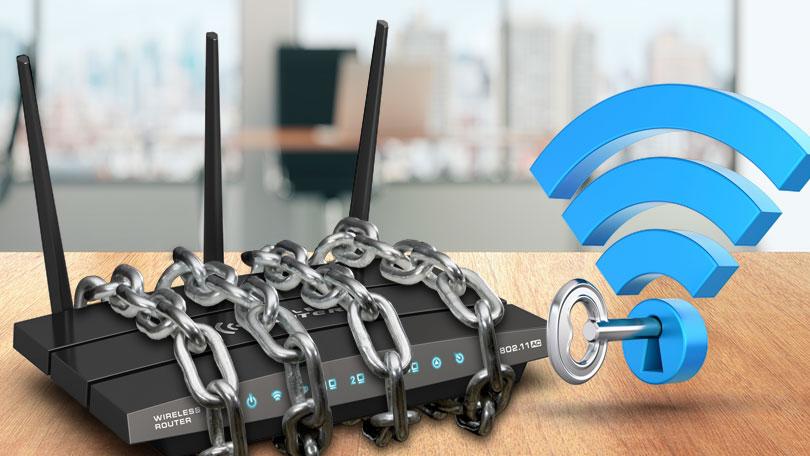
Credit: diligex.com
Initial Router Setup For Maximum Security
Securing your Wi-Fi network starts with the right setup. Proper initial configuration helps protect your data. It also prevents unauthorized access. Follow these steps to ensure your router is secure.
Changing Default Administrator Credentials
Your router comes with a default username and password. This information is often easy to find online. Changing these credentials is essential for security.
- Log into your router’s admin panel.
- Find the settings for user accounts.
- Change the username to something unique.
- Create a strong password. Use at least 12 characters.
Use a mix of letters, numbers, and symbols. Avoid common words and personal information. This simple change adds a crucial layer of protection.
Updating Router Firmware
Router manufacturers release firmware updates. These updates fix bugs and improve security. Keeping your firmware up to date is vital.
- Visit the manufacturer’s website.
- Check for the latest firmware version.
- Download the update if available.
- Follow instructions to install it on your router.
Set your router to check for updates automatically. This keeps your network secure without extra effort.
| Action | Importance |
|---|---|
| Change Default Credentials | Prevents unauthorized access |
| Update Firmware | Fixes vulnerabilities and improves security |
Taking these initial steps can greatly enhance your Wi-Fi security. Always stay informed about your router’s settings. Regular maintenance is key to a secure network.
Choosing The Right Wi-fi Encryption
Securing your Wi-Fi network is crucial. The right encryption keeps your data safe. Different encryption methods offer varying levels of protection. Understanding these can help you choose the best option for your home.
Understanding Wpa, Wpa2, And Wpa3
Wi-Fi encryption standards evolve over time. Here’s a brief overview:
| Encryption Type | Year Introduced | Security Level | Key Features |
|---|---|---|---|
| WPA | 2003 | Low | Initial security improvement over WEP. |
| WPA2 | 2004 | Medium | Introduced AES encryption for better security. |
| WPA3 | 2018 | High | Improved security for personal and enterprise networks. |
Choose WPA3 for the best protection. WPA2 is also secure but older.
Configuring Encryption Settings
Setting up encryption is simple. Follow these steps:
- Access your router’s settings. Use a web browser.
- Log in with your admin credentials. Check the manual if needed.
- Find the Wi-Fi settings section.
- Select the encryption type. Choose WPA2 or WPA3.
- Set a strong password. Use a mix of letters, numbers, and symbols.
- Save the changes. Restart your router if necessary.
Ensure all devices connect using the selected encryption. Regularly update your router’s firmware for optimal security.
Creating A Strong Wi-fi Password
Securing your Wi-Fi network starts with a strong password. A weak password invites hackers. Make your password tough to guess. It protects your personal information and devices.
Characteristics Of A Robust Password
A strong Wi-Fi password has several key features:
- Length: At least 12 characters long.
- Complexity: Use uppercase and lowercase letters.
- Numbers: Include digits to add difficulty.
- Symbols: Incorporate special characters like @, #, or $.
- Avoid: Common words, names, or easy-to-guess information.
Check this table for password strength:
| Password Example | Strength Level |
|---|---|
| Password123 | Weak |
| MyDogIs@Home! | Strong |
| !5Secure#WiFi@2023 | Very Strong |
Tools For Generating And Managing Passwords
Use tools to create and manage your passwords. Here are some reliable options:
- LastPass: A popular password manager.
- 1Password: Known for its strong security features.
- Dashlane: Offers a password generator.
- Bitwarden: An open-source password manager.
These tools help create complex passwords. They also store them securely. This way, you don’t need to remember every password.
Setting Up A Guest Network
Creating a guest network helps protect your main Wi-Fi. It allows visitors to connect without accessing your personal data. This is a smart move for better security.
Benefits Of A Separate Network For Visitors
A guest network offers several advantages:
- Enhanced Security: Keeps your main network safe.
- Privacy Protection: Limits access to your files.
- Bandwidth Management: Controls internet speed for guests.
- Easy Management: Disconnect guests easily.
How To Configure A Guest Network
Follow these simple steps to set up a guest network:
- Log in to your router’s settings.
- Find the “Guest Network” option.
- Enable the guest network feature.
- Set a strong password for guests.
- Customize settings like access limits.
- Save changes and restart your router.
Here’s a quick reference table:
| Step | Action |
|---|---|
| 1 | Log into your router. |
| 2 | Locate “Guest Network” settings. |
| 3 | Enable the guest network. |
| 4 | Set a secure password. |
| 5 | Adjust user access limits. |
| 6 | Save and restart. |
Following these steps makes your home network safer. A guest network keeps your data secure while allowing visitors online access.
Implementing Network Firewalls And Security Measures
Securing your Wi-Fi network is crucial. Implementing network firewalls and security measures helps protect your data. Firewalls act as barriers against unwanted access. This section discusses how to activate built-in firewall features and employ additional security layers.
Activating Built-in Firewall Features
Most routers have built-in firewall features. Activating these features enhances your network security.
- Access your router’s settings by entering its IP address in a web browser.
- Log in with your username and password.
- Locate the firewall settings in the security section.
- Enable the firewall feature.
- Save your settings and restart the router.
Here are some benefits of using built-in firewalls:
- Stops unwanted traffic.
- Monitors incoming and ou